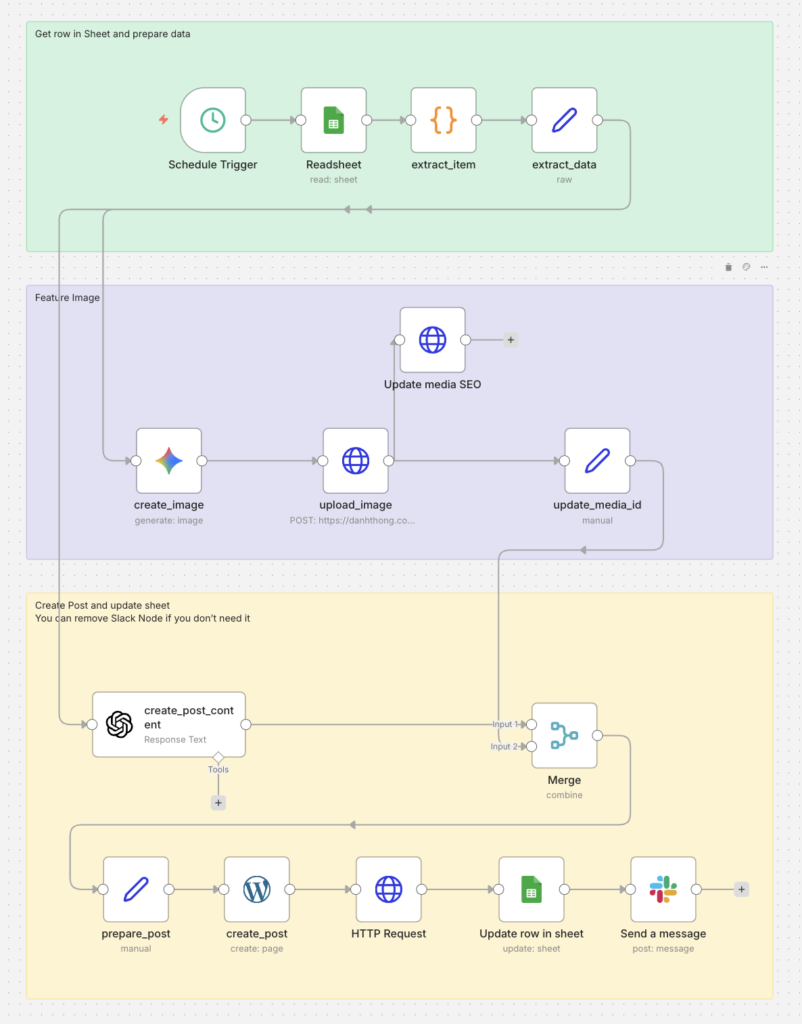
Automated WordPress Publishing from Google Sheets (AI + Thumbnail)
1) Overview
This n8n workflow automates:
- Read rows from Google Sheets where
status = ready - Pick one valid row (lowest
number, andpost_idis empty) - Generate a thumbnail image with Gemini → upload to WordPress Media → update image SEO fields
- Generate post content with OpenAI (GPT-4.1)
- Merge image + content → create a WordPress page with featured image
- Call a custom WP endpoint to change the created page into a
post - Update Google Sheet:
post_id,url,status = done - Send a Slack notification (optional)
2) Prerequisites
Google Sheet (required columns)
Your sheet should include at least:
number(used for priority sorting)titlesummaryimage_promptstatus(workflow filtersready)post_id(used to prevent duplicates)row_number(read-only field from the n8n Sheets node; used for updates)url(workflow writes back)
Status convention
ready: waiting to be processeddone: completed
WordPress
Must have:
- Working authentication (Basic Auth in your HTTP nodes)
- REST endpoints:
– Media upload: /wp-json/wp/v2/media
– Media update: /wp-json/wp/v2/media/{id}
– Custom endpoint (your site): /wp-json/custom/v1/change-post-type/{id}
Credentials in n8n
- Google Sheets OAuth2
- OpenAI API
- Google Gemini(PaLM) API
- WordPress API credentials (WordPress node)
- HTTP Basic Auth (HTTP Request nodes)
- Slack API (optional)
3) High-level Flow
Schedule Trigger
  → Readsheet (Google Sheets: filter status=ready)
    → extract_item (Code: filter + sort + pick 1 row)
      → extract_data (Set: normalize fields)
        ├─ create_image (Gemini: generate thumbnail)
        │   → upload_image (HTTP: upload to WP media)
        │     ├─ update_media_id (Set: media_id)
        │     │   → Merge (combineAll)
        │     └─ Update media SEO (HTTP: alt/caption/desc)
        └─ create_post_content (OpenAI: write content)
            → Merge (combineAll)
              → prepare_post (Set: map title/content/media)
                → create_post (WordPress: Create page)
                  → HTTP Request (custom: change post_type=post)
                    → Update row in sheet (write post_id/url/status)
                      → Send a message (Slack)
4) Node-by-node Documentation
4.1 Schedule Trigger
Node: Schedule Trigger
Purpose: Runs on a schedule (configured to run every “minutes”).
4.2 Readsheet (Google Sheets)
Node: Readsheet
Purpose: Reads rows from the spreadsheet.
Filter: status = ready
Output: Multiple items (each item = one row).
4.3 extract_item (Code)
Node: extract_item
Purpose: Select exactly one row to process.
Logic:
- Keep rows where:
– status equals ready
– post_id is empty
- Sort by
numberascending - Return only the first row
- If no rows match, return
[](workflow ends naturally)
Code (from your workflow):
// Collect rows
const rows = items.map(i => i.json);

// Filter: status=ready and post_id empty
const filtered = rows.filter(r => {
  const status = String(r.status || '').trim().toLowerCase();
  const postId = r.post_id === undefined || r.post_id === null || String(r.post_id).trim() === '';
  return status === 'ready' && postId;
});

// Stop if none
if (filtered.length === 0) return [];

// Sort by number asc
filtered.sort((a, b) => Number(a.number) - Number(b.number));

// Return one row
return [{ json: filtered[0] }];
4.4 extract_data (Set)
Node: extract_data
Purpose: Normalize the row into a clean JSON payload used by downstream nodes.
Creates:
titlesummaryimage_promptrowNumber(fromrow_number)
Note: Later, the sheet update uses
$('extract_item').item.json.row_number(which is correct for matching).
4.5 create_image (Google Gemini)
Node: create_image
Purpose: Generate a modern blog thumbnail.
Inputs: title, image_prompt
Style rules: minimalist, tech-focused, 16:9, no text in image, strong padding/negative space.
4.6 upload_image (HTTP → WP Media Upload)
Node: upload_image
Request: POST https://<your-domai>/wp-json/wp/v2/media
Auth: HTTP Basic Auth
Body: binary image data field named data
Headers:
Content-Disposition: generates a slug filename from titleContent-Type: uses the image mimeType
Output: WordPress media object including id (attachment ID).
4.7 Update media SEO (HTTP)
Node: Update media SEO
Request: POST https://<your-domai>/wp-json/wp/v2/media/{{ $json.id }}
Purpose: Set:
alt_textcaptiondescription
All set to the post title for better SEO consistency.
4.8 update_media_id (Set)
Node: update_media_id
Purpose: Create a clean field for merging:
media_id = $json.id
4.9 create_post_content (OpenAI GPT-4.1)
Node: create_post_content
Model: gpt-4.1
Purpose: Generate the full article content.
System prompt: Technical blogger, SEO-friendly, Gutenberg-ready HTML.
User prompt: Uses title + summary as context, but must NOT repeat them verbatim in the body.
Output is referenced later as:
{{$json.output[0].content[0].text}}
4.10 Merge (combineAll)
Node: Merge
Mode: combineAll
Purpose: Merge outputs from:
create_post_content(text content)update_media_id(featured media id)
So downstream nodes have both content + media_id.
4.11 prepare_post (Set)
Node: prepare_post
Purpose: Assemble the final payload for WordPress creation.
Sets:
title = $('extract_data').item.json.titlecontent = $json.output[0].content[0].textmedia = $json.media_id
⚠️ Potential improvement:
mediais typed as string in your workflow. WordPress often expects a number ID. If you see issues, change the type to number.
4.12 create_post (WordPress)
Node: create_post
Resource: page
Operation: create
Fields:
title = $json.titlecontent = $json.contentstatus = publishfeaturedMediaId = $json.media
Output includes:
idlinkdatetitle.raw
4.13 HTTP Request (Custom: change post type)
Node: HTTP Request
Request: POST https://<your-domai>/wp-json/custom/v1/change-post-type/{{ $json.id }}
Body:
{ "post_type": "post" }Purpose: Convert the created “page” into a “post”.
4.14 Update row in sheet (Google Sheets)
Node: Update row in sheet
Operation: update
Matching column: row_number
Writes back:
row_number = $('extract_item').item.json.row_numberpost_id = {{$json.post_id}}⚠️ (see note below)url = $('create_post').item.json.linkstatus = done
⚠️ Important: post_id mapping likely wrong
After the custom HTTP request, $json probably does not contain post_id.
✅ Safer mapping:
post_id = {{$('create_post').item.json.id}}
That guarantees you store the WP post ID.
4.15 Send a message (Slack)
Node: Send a message
Posts to #general:
- Title:
$('create_post').item.json.title.raw - Date:
$('create_post').item.json.date - Link:
$('create_post').item.json.link
Optional: you can remove this node if you don’t need notifications.
5) Data Contracts (Input/Output)
Example input row (from Sheet)
{
  "number": 1,
  "title": "Example Post",
  "summary": "Short summary...",
  "image_prompt": "Laptop + cloud icon...",
  "status": "ready",
  "post_id": "",
  "row_number": 12
}
Key final outputs
- WordPress Post ID:
$('create_post').item.json.id - WordPress URL:
$('create_post').item.json.link - Sheet updated:
– post_id: WP ID
– url: WP link
– status: done
6) Operational Checklist
- At least one sheet row has
status=ready - The row has empty
post_id - Gemini image generation works
- WP media upload endpoint works (Basic Auth)
- WP create page works
- Custom change-post-type endpoint works
- Sheet update writes back
post_id,url, and setsstatus=done - Slack notification works (optional)
7) Recommended Improvements (Optional)
1) Prevent double-processing
- Immediately set
status = processingafter selecting the row (before calling AI) - On success →
done - On failure →
error
2) Create a Post directly
- If your WordPress node supports creating posts, use that instead of creating a page + custom conversion endpoint.
3) Ensure featured media ID type
- Cast
media_idto a number before sending to WP.
4) Add error branches
- For media upload failures, GPT failures, WP failures → update sheet
status=errorand log the error.